

Flag risks before granting access with visitor screening
Check every visitor against denied-party and sanctions lists, background databases, contractor networks and your own blocklist before they're approved, so a match reaches trade compliance or security, not just the front desk.


This is one of the first times we’ve had a single visitor management system across all of our sites. I sit in Ohio, and I can get a visitor processed in California. We’ve always had an inspection-ready mindset, and Envoy is how we hold that standard everywhere—photos, NDAs, ID scanning, and visual compliance screening on every visitor, at every site.”

Screen foreign nationals and visitors against denied-party lists
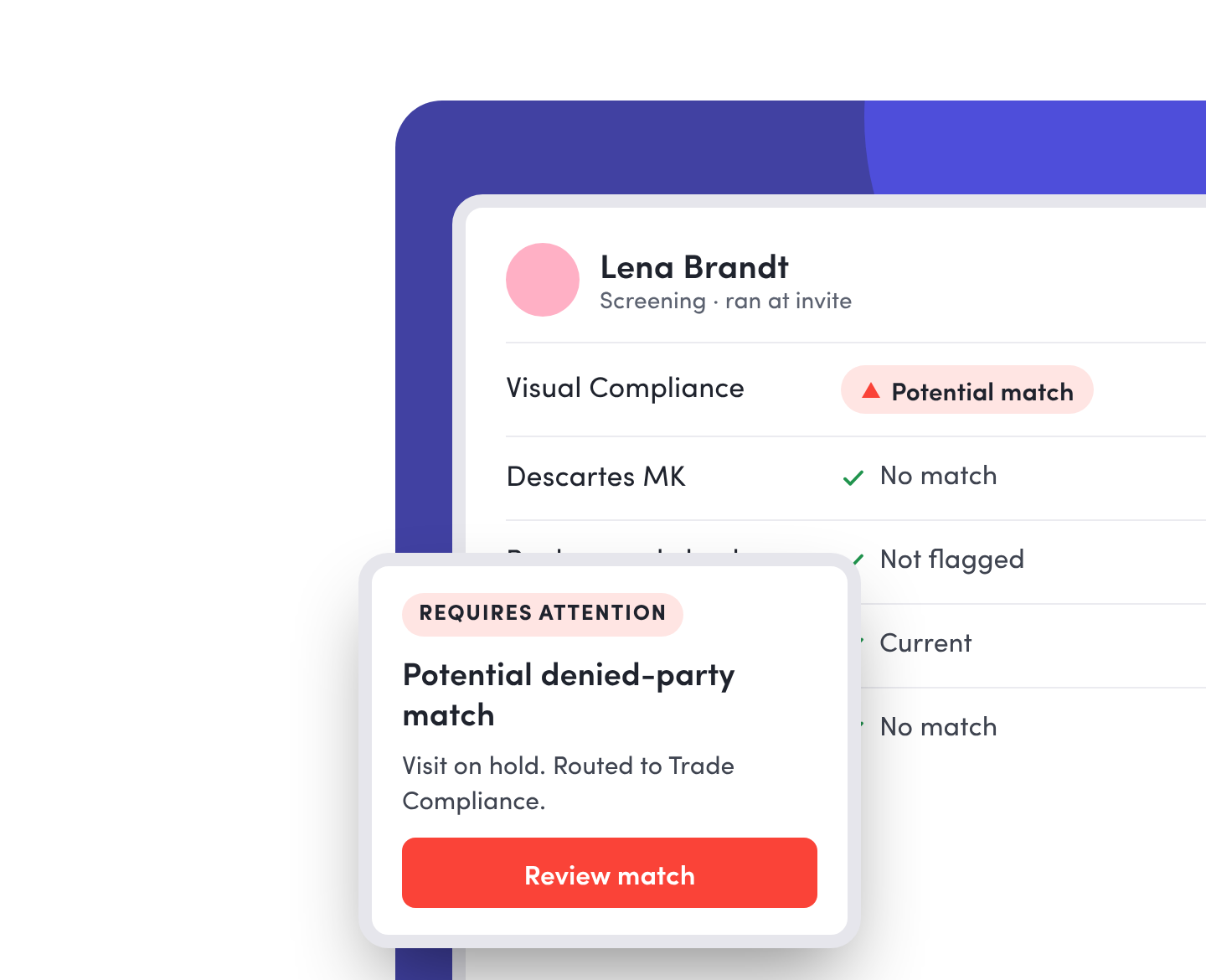
Screen visitors against the denied-party, restricted-party, and sanctions lists configured in Visual Compliance, Descartes MK, or Oracle Global Trade Management. Checks run when someone is invited or signs in, so potential matches reach your trade compliance team before anyone gets near export-controlled technology.
Ensure visitors meet your site requirements
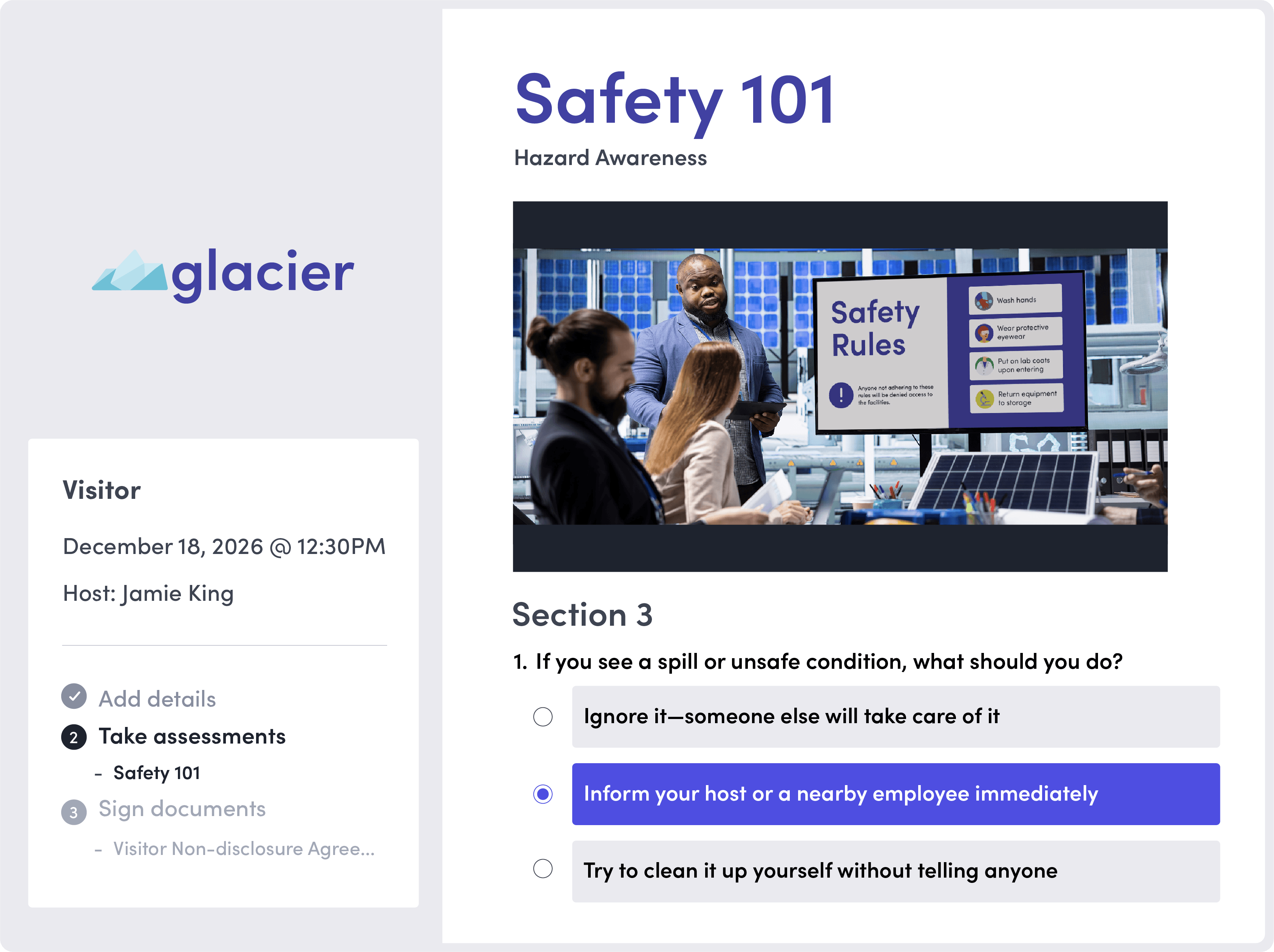
Require visitors and contractors to complete site-specific assessments before entry, and prompt them to retake them on the schedule your policy sets. Anyone who hasn’t passed is held for review.
Run visitor background checks without leaving the visitor flow
With integrations available in Envoy, your visitor screening can include criminal background checks, terrorist watchlists, sex offender lists, and wanted person lists. Choose the categories that fit your policies and designate who receives potential-match alerts.

Stop known risks with your own blocklist
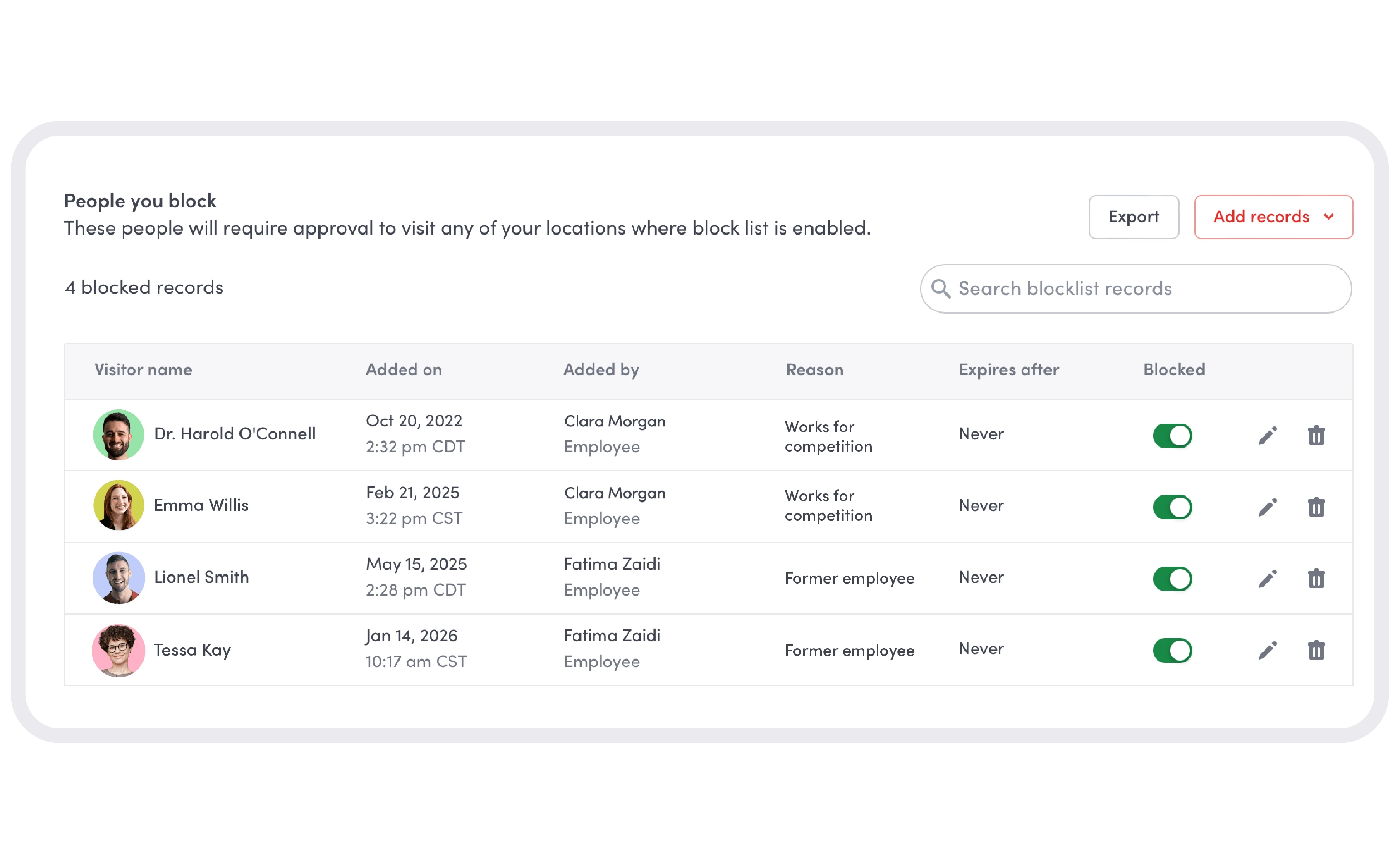
Some risks never appear on a government list: a former employee, someone with a restraining order, or a person on your internal BOLO list. Check every visitor against your company blocklist. ID scanning matches both name and document number, so a changed name doesn't get someone through.
Give every entry decision the scrutiny it requires

Checks tailored to visitor types
Enable screening integrations for all visitors or selected visitor types. Apply the checks your policies require for contractors, vendors, and other guests.

Identity checks alongside screening
Screen the person, not just the name. Pair screening with ID scanning to confirm the visitor matches their government-issued ID, so the identity you screened is the one at the door.

Route matches to the right team
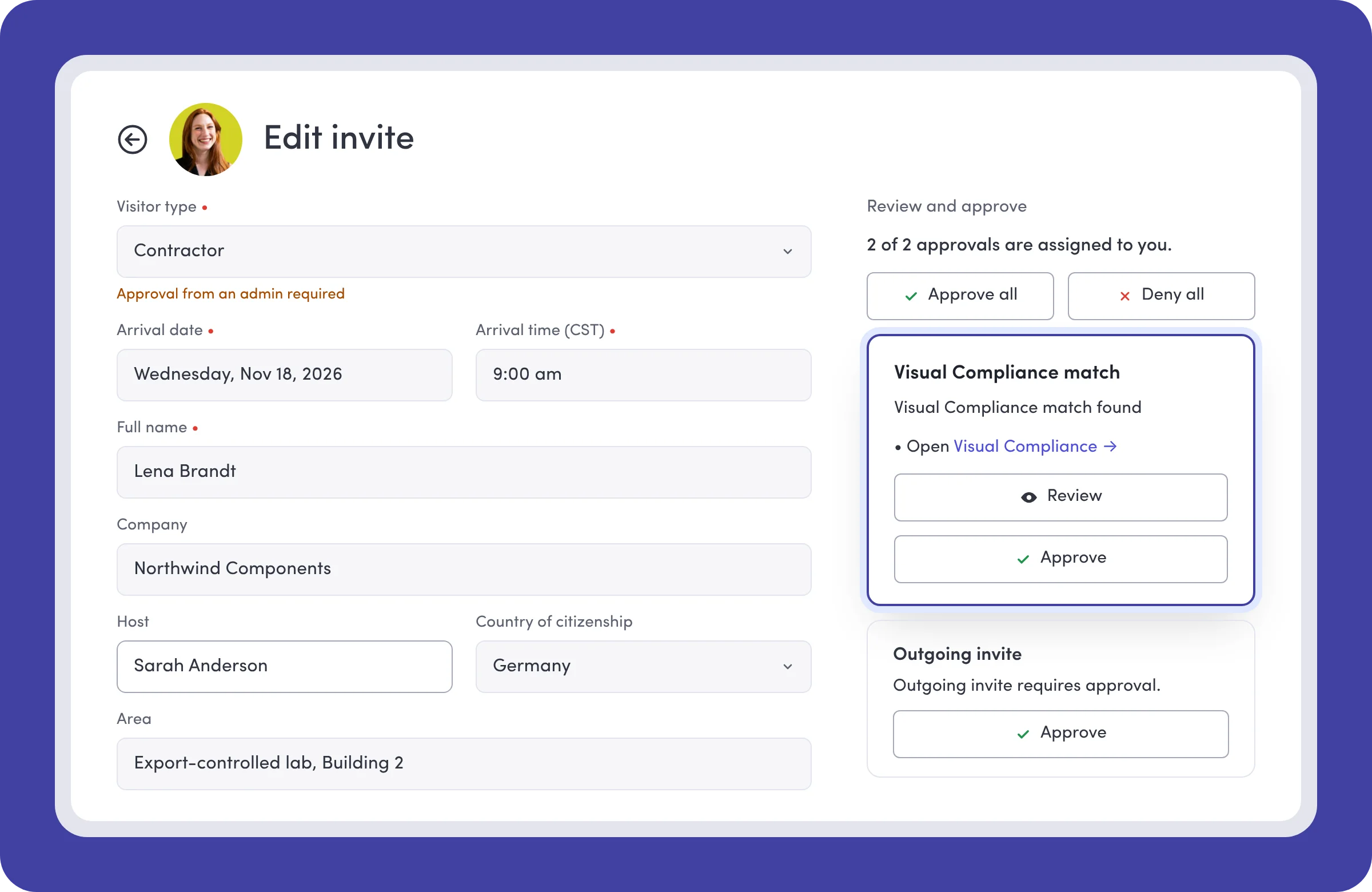
Build Visual Compliance screening into your approval workflow. If a visitor returns a potential match, route the request to your trade compliance or security team to review and approve.

A record of the review
Keep track of who approved or denied a flagged visit and when. Visual Compliance approval workflows also let reviewers add their reasoning, giving your team context for later reviews.
Bring security controls together with Visitors Critical
Visitors Critical connects everything you need to enforce your visitor policies and keep decisions ready for review.
Verify identityVerify identity
Match each visitor’s name and face to their government-issued ID, with a liveness check.
Screen for risksScreen for risks
Flag potential screening matches and unmet contractor requirements for review before approval.
Route approvalsRoute approvals
Send each visit to designated reviewers based on your policies, with sequential or concurrent approvals.
Protect sensitive dataProtect sensitive data
Restrict sensitive visitor information by role and set how long selected fields and files are kept.
Still have questions?
We can help.
Denied-party screening checks a person or company against lists that identify restricted or prohibited parties. Envoy connects with restricted party screening software to flag potential matches during the visitor process, giving your team information to review before approving a visit.
Denied-party screening flags people who may be restricted from entry. Contractor screening checks whether someone meets your site’s requirements to work there. Envoy uses live status from ISN to check requirements such as training, qualifications, and worker acknowledgments.
Integrations depend on your plan. Available integrations include Visual Compliance, Descartes MK, and Oracle Global Trade Management for denied-party screening, Checkr Trust for background and watchlist screening, and ISN for contractor qualification checks. Available checks depend on the provider and your configuration.
Yes. Denied-party screening through Visual Compliance, Descartes MK or Oracle Global Trade Management flags potential matches when a visitor is invited or signs in. Combined with approval workflows in Visitors Critical, foreign nationals can be routed to trade compliance for review before security clears the visit.
Envoy flags the match and alerts your security team before the visitor is let in. With ID scanning, the check covers both name and document number.
A potential match doesn’t automatically mean someone is denied entry. Screening integrations can pause the visit and alert your team to review the details before approving or denying it. With Visual Compliance in an approval workflow, you choose who handles that review.
Visual Compliance, Descartes MK, and Checkr Trust support screening when a visitor is invited. ISN checks can also run during pre-registration. The timing and information required depend on the integration and how your visitor flow is configured.
Yes. You can choose which visitor types to screen with each integration. With Visual Compliance in an approval workflow, you can also set rules so screening only runs when a visitor meets certain conditions.
Export compliance screening software can flag potential restrictions, but your team still reviews the planned visit and decides where someone can go and what they can do under your policies. Passing a screening check doesn’t automatically clear someone for every area or activity.